![Logo-Jan-08-2025-02-49-57-3639-PM.png]](https://knowledge.bridge.audio/hs-fs/hubfs/Logo-Jan-08-2025-02-49-57-3639-PM.png?height=15&name=Logo-Jan-08-2025-02-49-57-3639-PM.png)
Search for tracks :
1. Using the search bar
You can search for tracks on Bridge Library, Bridge Sync, or Bridge Score using the search bar. Several options are available:
-
By artist, album, or track title: simply type the name you are looking for.
-
By tags: you can search for specific tags. For example, entering the tags Rock and Female Lead will display tracks matching those criteria.
-
By metadata: search using an ISRC code, composer name, label, or publisher to find a specific track.
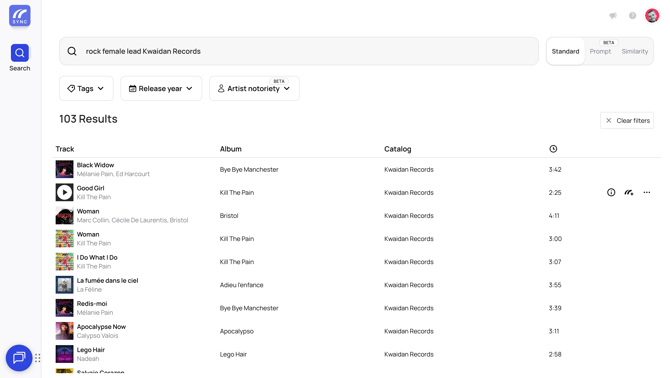
2. Searching by tags
Use the “Tags” button to explore tracks based on their tags. You can either search for specific tags or browse the available options.
Three tag filtering options are available:
-
Must Have: the track must contain this tag to appear in the results.
-
Should Have: the track may contain this tag, but it is not mandatory.
-
Don’t Have: excludes all tracks containing this tag from the search results.
You can combine as many tags as you like to refine your search and find exactly what you need.
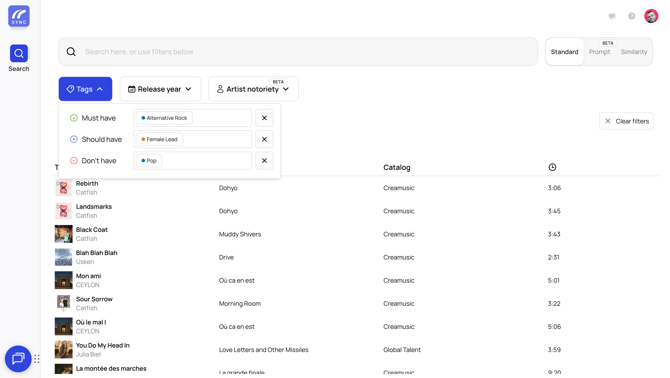
You can also modify these filtering options at any time by clicking on the tag of your choice.

Example:
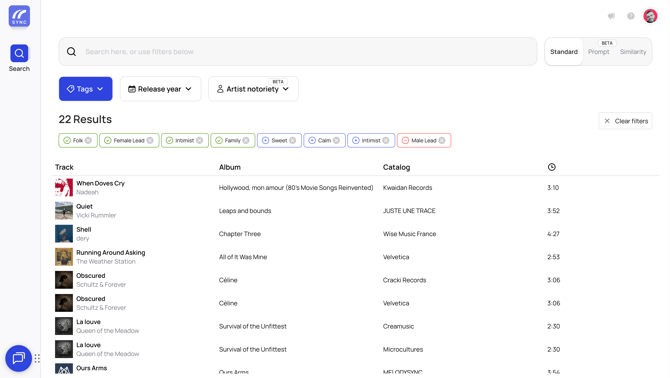
If you are looking for an intimate folk track performed by a female singer with a soft voice, and lyrics about family, simply select these tags. The results will automatically be refined based on your criteria. Active filters will be displayed, allowing you to easily modify or remove them if needed.
Here is a video that explains how to search for tracks on our Discovery Hubs:
3. Using prompt-based search
Prompt-based search allows you to describe your brief directly in the search bar.
To use prompt search, select “Prompt” on the right side of the search bar.

For example, you can search for:
“An intimate folk track performed by a female singer with a soft voice, about family.”
Bridge’s descriptive AI will analyze your prompt and automatically generate tags that match your description. You can then:
-
Edit or remove the generated tags
-
Apply filtering options by clicking on the tags (Must Have / Should Have / Don’t Have)
-
Add new tags to further refine your search
This method is ideal for quickly finding tracks that match a specific mood or context.
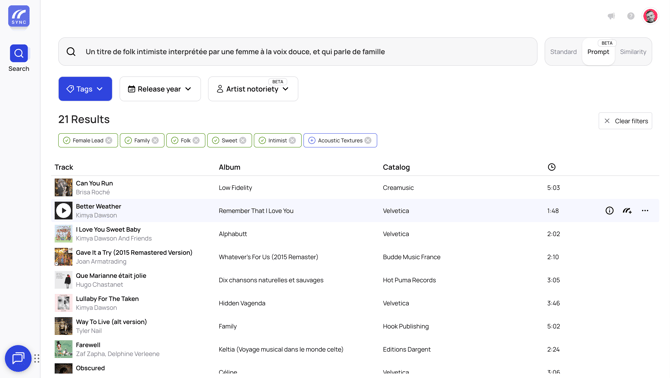
Working with your results
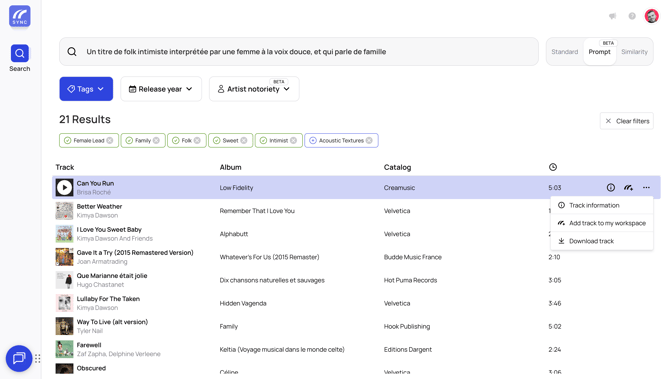
If a track catches your attention, click the "..." menu to either:
- Download the track
- Add it to your workspace
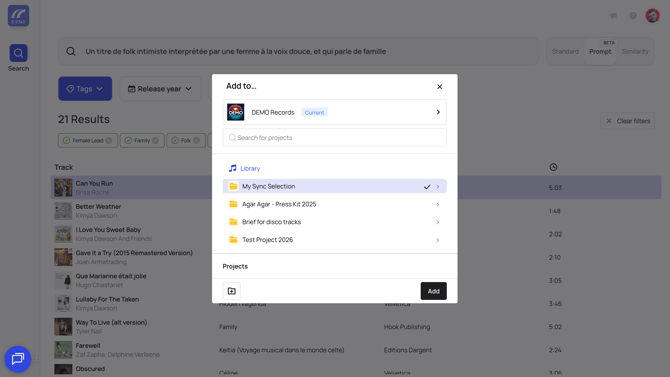
When adding tracks to your workspace, you can assign them to existing projects or create a new project directly from the modal.
We recommend creating a Selection Sync project. This allows you to organize your favorite tracks and easily share them with collaborators.
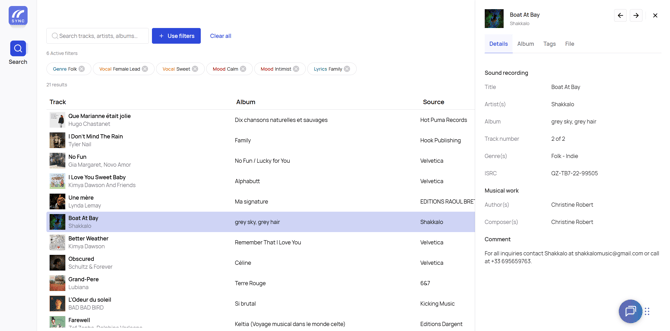
Finalizing the Synchronization
When you’ve found the perfect track, click the "..." menu again and select "View Information". In the comment section, you’ll find the contact details of the rights holders to finalize the synchronization deal.