![Logo-Jan-08-2025-02-49-57-3639-PM.png]](https://knowledge.bridge.audio/hs-fs/hubfs/Logo-Jan-08-2025-02-49-57-3639-PM.png?height=15&name=Logo-Jan-08-2025-02-49-57-3639-PM.png)
You’ve uploaded tracks on your workspace? Congratulations! You’re now all set to manage your catalog.
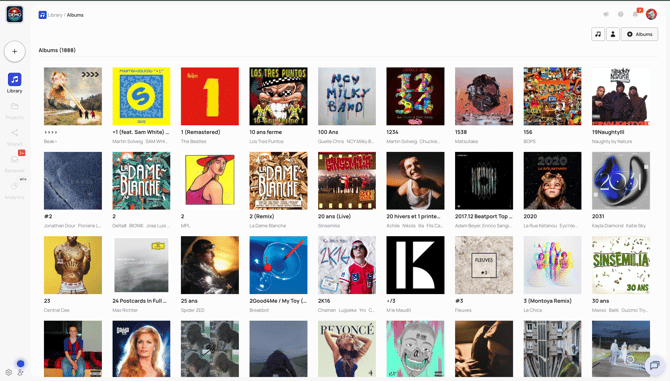
As all streaming platform, your catalog can be browsed within three different views : tracks, artist, album. You can choose your view at the top right of your screen
🎵Tracklist
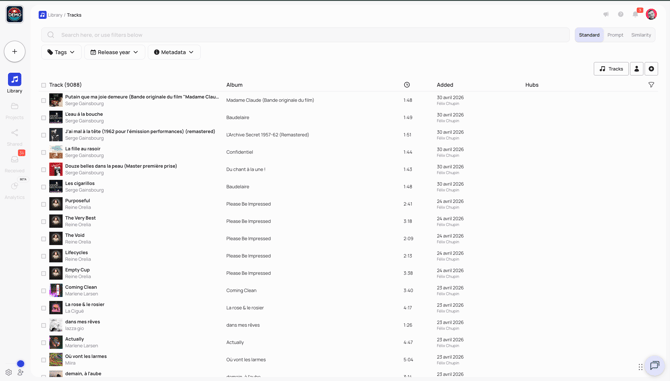
On that view, you can see all of your tracks. By default, they are sorted out by added date. Added date is the date you uploaded the track on Bridge Audio.
You can click on the column headers to sort out your catalog by : added date, rating, album name, artist name or track name.
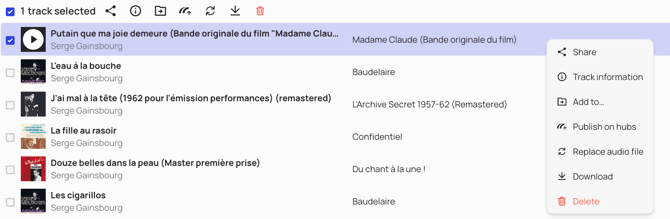
When hovering a track, performing a right click, clicking on "...", or selecting a track, some actions can be performed on a single track :
- Share track(s) : generate one or more links for this track.
- Add to… : Copy the track to a project, or to another workspace.
- Accéder (et/ou éditer) les informations du morceau
But also :
- Replace audio file : that features allows you to change the audio file of a track, without loosing all metadata of the track. The tracks stay all the same (name, right holders, tags…) but the audio file changes. Very useful feature to switch audio format, or to add new versions step by step.
- Download : allows you to download the track from Bridge to you computer
- Publish on hubs : allows you to publish your tracks on our discovery hubs
- Delete : remove the track from your Bridge library
👨🎤Artist
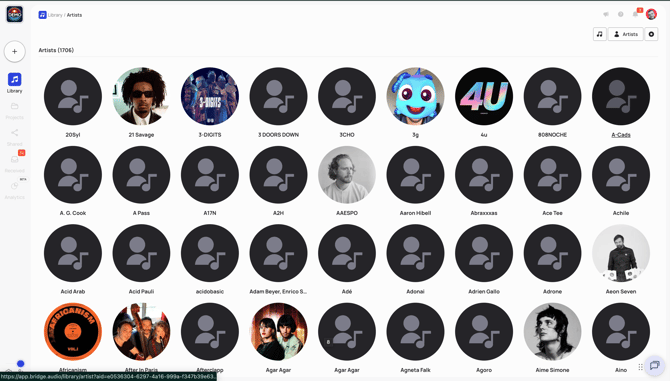
You can click on the artist name on the tracklist or go to the artist view of you library to find an artist.
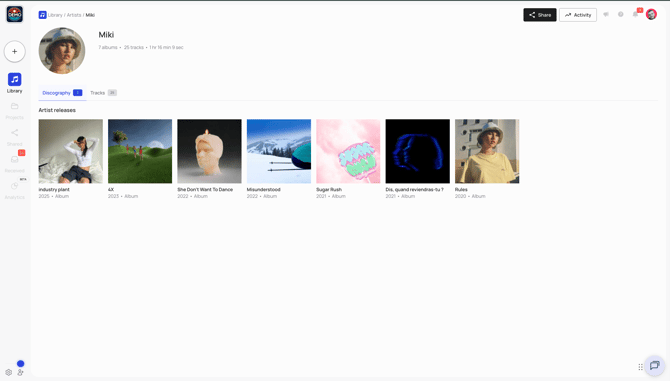
What can I find on an artist page ?
On an artist page you’ll find following tabs
- Discography : A list of all the artist releases. A carrousel allows you to browse in your artist discography. Clicking on an artwork in the carrousel redirects you to the album directly in the artist page.
- Tracks : all tracks of the artist, without displaying it by album/support.
- Share features : allows you to share the artist page
- Activity: all the activities generated by the links you shared with your network for that artist.
What actions can I perform on an artist page ?
On that artist page, you can :
- Perform all actions on tracks t
- hat where already available on the tracklist view
- Edit artist name : just click on the artist name to edit it
- Share : directly share the artist and all his/her discography.
- Activity : all the activities generated by the links you shared with your network for that artist.
🧐 Difference between artist of a track and artist of a support
Sometime a track that do have an artist saved won’t appear in that same artist’s discography. Why so ? An artist can do a feat on an album that is not his album. For that reason, even if the person is an artist on the track, he’s not saved on the album level. That’s why if you go on the artist page, you will find the track on the Tracks tab, because he is an artist of the track, but not on the Discography tab.
💿Album
You can click on the album name on the tracklist or go to the album view of you library to find an album.
Quelles informations puis-je trouver sur la page d'un album ?
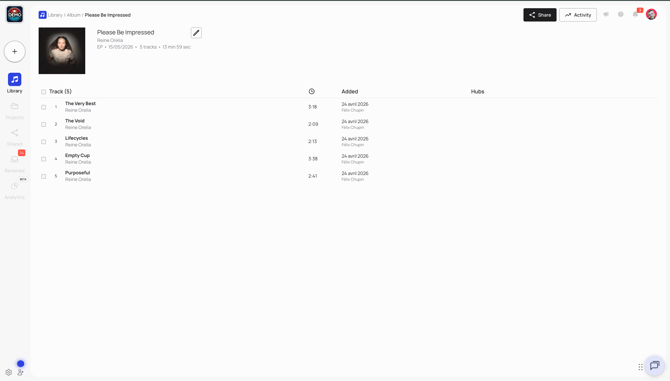
On an album page you'll find the following features:
- Tracks : all the tracks from the album
- Share features : allows you to share the album page
- Activity : all the activities generated by the links you shared with your network for that album.
What actions can I perform on an album page ?
On that album page, you can :
- Perform all actions on tracks that where already available on the tracklist view
- Edit album info : click on the “edit album” at the top right of the screen to see and edit :
- Artwork of the support
- Support type : album, EP, Single…
- Artist of the support
- Release date of the support
- UPC code of the support
- Total track number of the support
- Add the whole album to a project, or to another workspace : at the top right of the page, a dedicated button allows you to add all tracks of the album to a project, or even to create a new project before adding all tracks to it. You can also copy or move the entire album to another of your workspaces.
- Share album : directly share the album / EP / compilation...
Perform actions on multiple tracks at once
There is no limit set on Bridge.audio for multi-selecting tracks. That means you can select as many tracks as you want to perform the following actions:
- Share the tracks
- Edit tracks information (metadata)
- Add tracks to a (new or existing) project, or to another workspace
- Download tracks in a ZIP folder
- Publish your tracks on the hubs
- Delete tracks
Track order on Bridge.audio
Bridge works as follows for the order of the different tracklists available on the tool:
- On the main tracklist tracks are ordered by default by most recent upload. You can change the order by clicking on the available columns: alphabetical or counter-alphabetical order by track name, artist, album, order by track duration, or order by rating.
- On projects, the order of tracks is completely free: just drag & drop the tracks to the position you wish.
- Finally, on album pages , the order of tracks is determined directly in the metadata; this is the "official" order of tracks within an album / EP / compilation / etc. This is set by clicking on Edit Information next to a track, in the Details tab -> Track Number.
❓Can I store non-audio media in my library?
Unfortunately, no, you cannot store them directly in the library.
There are, however, two exceptions:
- Album covers
- Artist photos
For all other types of non-audio media, you can use projects to attach as many documents as you need:
- Videos
- Photos / images
- PDFS
- Text documents
- Spreadsheets