![Logo-Jan-08-2025-02-49-57-3639-PM.png]](https://knowledge.bridge.audio/hs-fs/hubfs/Logo-Jan-08-2025-02-49-57-3639-PM.png?height=15&name=Logo-Jan-08-2025-02-49-57-3639-PM.png)
The Information sidebar
Once you have uploaded audio assets into your Bridge.audio library, there is a lot you can do to enrich your tracks with additional information.
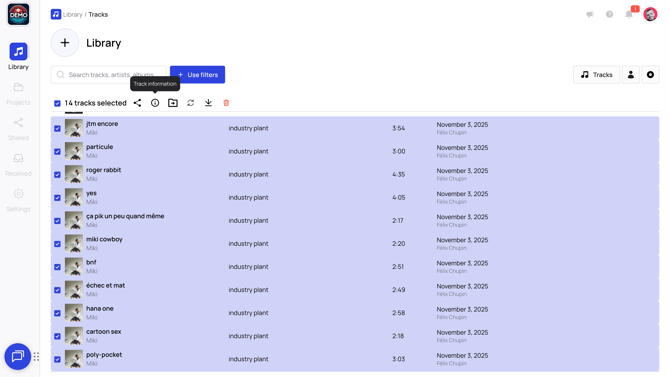
To add information to a track, select it and then click the button Track Information. A sidebar will open, with all the possible information you can add to the track.
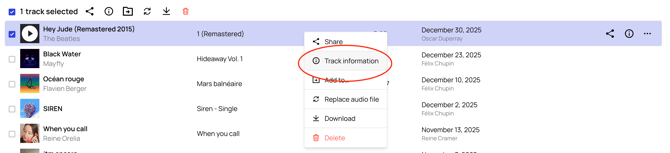
There are several sections available in the metadata panel:
Details
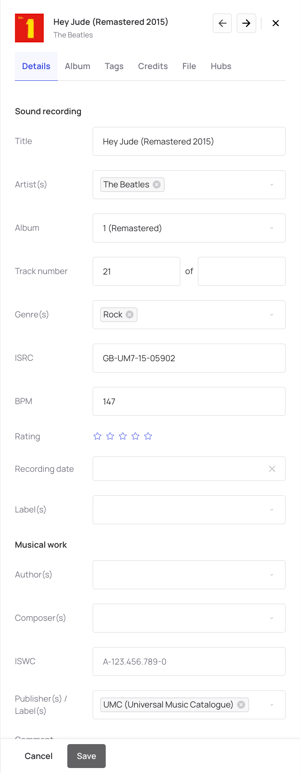 In here you will find basic information about the track, that is:
- Title
- Artist
- Album
- ISRC
- BPM
- Rating
- Recording date
- Label
- Author(s)
- Composer(s)
- ISWC
- Publisher
- Comment
- Lyrics
Album
To edit album information (name, artists, type, release date, UPC, or artwork), open Track Information for the track, then go to the Album section and click Edit. This will open the album’s dedicated page, where you can update all related details.
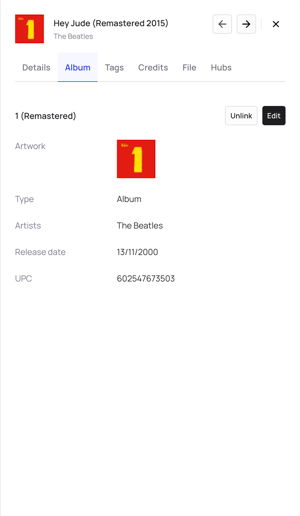
💡 Tip: You can also access the album page directly by clicking on the album name from your library.
Tags
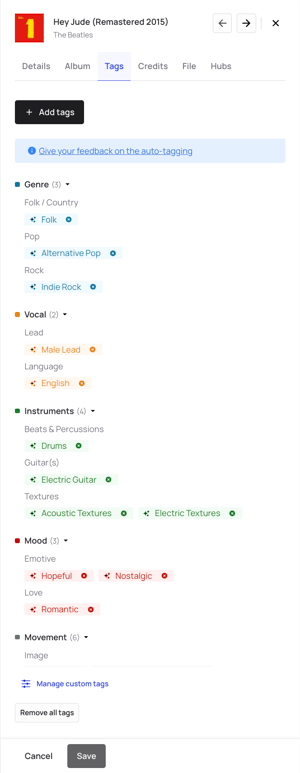
- Genre
- Vocal
- Instruments
- Mood
- Mouvement
- Lyrics
- Other
- You can also create your own Custom tags!
Credits
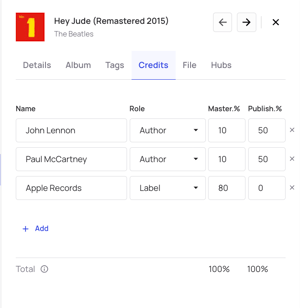
⚠️ Credits are for internal use only. They will not be displayed on your sharing links or on Bridge Sync.
Additionally, they are not ID3 fields, so they will not be embedded in your files when you export them.
File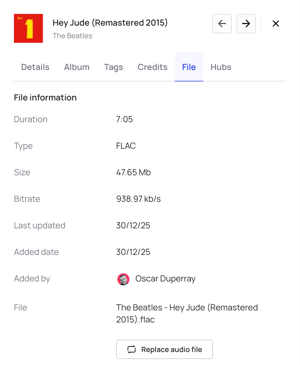
- Length
- Type
- Size
- Bitrate
- Date last updated
- Date added
- Added by.
You can also perform a Replace Audio File from this tab.
ℹ️ For most fields in the metadata panel, saving is automatic after you performed some changes. However you may have to click Save to confirm changes on specific actions.
Hubs
This section allows you to publish your tracks on our Discovery Hubs, Bridge Sync, Bridge Score, and Bridge Library.
If the status shows No, the track is not published yet. To publish it, click on No and select Yes.
Once the Changes Saved message appears in the bottom-left corner of the screen, the track becomes available.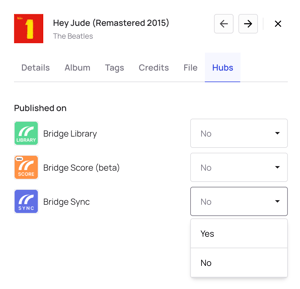
ℹ️ For more information about discovery hubs
Add/Edit metadata for multiple tracks
Of course, you might want to add or change metadata for several tracks at the same time. To do so, just select each track you want the additional information to apply to. Then click Track Information above the list of tracks.
❓Why are metadata missing after uploading tracks to Bridge.audio?
Everything depends on the metadata embedded in your file before uploading it to Bridge. Bridge can read and convert all existing metadata (especially ID3 fields).
If your track was properly tagged before upload (artwork, ISRC, lyrics, etc.), all this information will be available in your library. If no metadata was embedded in the file, Bridge cannot generate it.
⚠️ Exception: WAV files. While excellent for audio quality, this format does not handle metadata well, a well-known industry limitation.
Tags
For information about the tag system on Bridge.audio, click here
Lyrics
For any track in your library, you can attach lyrics. Simply go the Details section of the Information sidebar, and copy and paste the lyrics in the dedicated field.
Artworks
There are two types of artworks you can enrich your library with: a support/album artwork, and an artist artwork.
- To add an artwork to an album. Click on the album name on your library. You will be directed to the page specific to that album. Click the … button and select Edit Album. Then you can click Change next to the album artwork, to upload a new picture.
- To add an artwork to an artist. Click on the artist name on your library. You will be directed to the page specific to that artist. Click Edit Artist, then you can add or change the picture associated with it.
Keep in mind that when you select multiple tracks in your library, the option to change the support artwork will only be available if all the tracks you selected are listed as part of the same support/album. To do so, use the Track Information section.