![Logo-Jan-08-2025-02-49-57-3639-PM.png]](https://knowledge.bridge.audio/hs-fs/hubfs/Logo-Jan-08-2025-02-49-57-3639-PM.png?height=15&name=Logo-Jan-08-2025-02-49-57-3639-PM.png)
Bridge.audio is a collaborative solution. We strongly recommend inviting your team members to collaborate within your workspace and work efficiently on your projects.
Invite Members
When you create a workspace, you are immediately given the option to invite your team. Simply enter the email addresses of the people you would like to add.
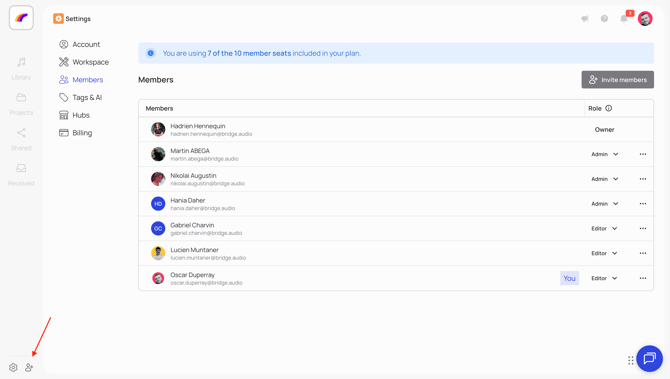
You can also invite members at any time by clicking on the members icon in the bottom left of your screen or by following these steps:
-
Go to Settings > Members
-
Click on Invite Members
-
Enter the email addresses of the people you want to invite
Once they receive the invitation, they will be just a few clicks away from joining your workspace and starting to collaborate with you.
Rules and limitations
The number of members you can invite depends on the plan associated with your workspace:
-
Free plan: up to 3 members
-
Talent Pro plan: up to 5 members
-
Music Pro plan: up to 7 members
These limits correspond to the number of available seats per workspace, based on your subscription plan.
If you'd like to add members to your paid plans, it is possible upon request, please reach us through support@bridge.audio
Remove members
On the other hand, if you wish to remove a member from your workspace. Open the settings, go to the Members section. You can select the person you would like to remove from your workspace and confirm your decision.
Keep in mind that only admin members (and the workspace owner) can remove or add people to a workspace.
❓Who should I invite on my workspace?
You are completely free to invite anyone you want on your workspace(s). We usually recommend that you invite the people you work with.
Here are common examples of workspaces with several members:
If you’re an artist, you can:
Invite all the members of your band
Invite musicians you work with
Invite your manager
Invite people from your label
Invite your sound / mastering engineers
If you’re in a company (label, publisher, PR…)
Invite all of your colleagues
Invite specific colleagues that are in your team
If you’re a manager:
You can create one workspace for each artist you manage, and invite them on their respective workspace.
❓What if I want to stay solo on my workspace ?
No problem, you can also keep your workspace(s) for yourself to work with your catalog and on your projects.
Member roles - Owner vs Admin vs Editor
The owner/creator of a workspace is automatically appointed as admin of the workspace.
Only the owner can permanently delete a workspace and all of its content.
The owner can transfer the ownership of a workspace to another member of the workspace.
Only an owner/admin can change workspace settings such as the workspace name, as well as invite or remove members. An editor cannot.
When inviting new members to the workspace, an admin can choose whether the new member(s) will be an admin too, or an editor.
Owners and admins also have the possibility to change other members’ roles.
Finally, only the owner and admins of a workspace can access subscriptions options: they can pay for a Pro plan, upgrade it, downgrade it, change billing info, etc