![Logo-Jan-08-2025-02-49-57-3639-PM.png]](https://knowledge.bridge.audio/hs-fs/hubfs/Logo-Jan-08-2025-02-49-57-3639-PM.png?height=15&name=Logo-Jan-08-2025-02-49-57-3639-PM.png)
You can access your Workspace settings by clicking on Settings in the left sidebar.
The settings are organized into several sections, each dedicated to a specific aspect of your account and Workspace.
Account
This section allows you to manage your personal account information:
-
Edit your first name, last name, and profile picture
-
Change your password
-
Update your email address
-
Manage your login options
You can connect your account to:
-
Google
-
Microsoft
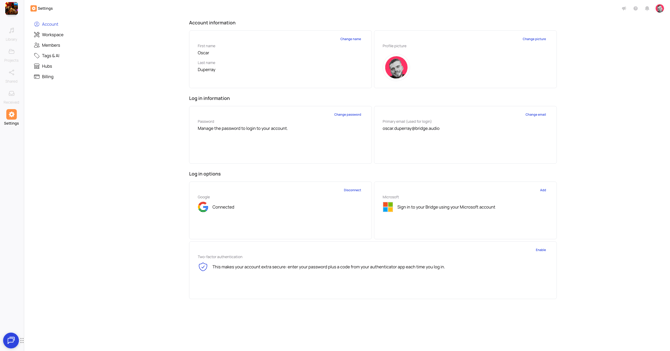
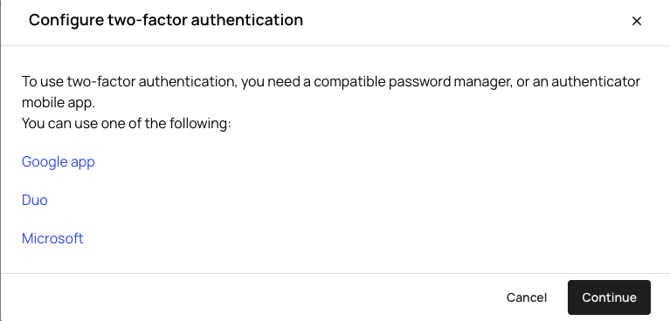
You can also enable Two-Factor Authentication (2FA) to add an extra layer of security.
With 2FA, you will need to enter your password plus a code generated by an authentication app.
You can use one of the following apps:
-
Google Authenticator
-
Duo
-
Microsoft Authenticator
Workspaces
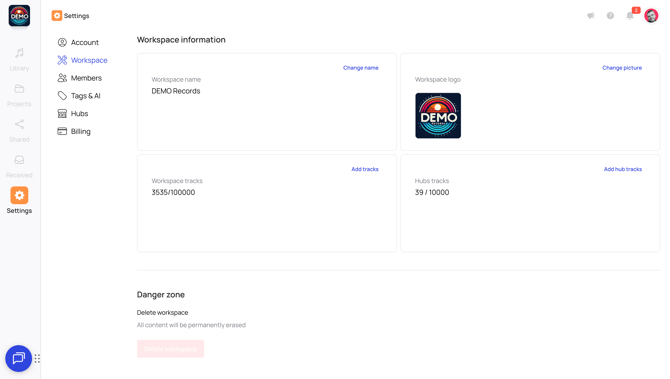
In this section, you can:
-
Change the Workspace name
-
Change the Workspace logo
-
View:
-
The number of Workspace Tracks and the number of tracks you can store
-
The number of Hub Tracks used to share your tracks on discovery hubs
-
If you are the Owner of the Workspace, you can also permanently delete your Workspace.
⚠️ Warning: Deleting a Workspace will permanently remove all its content. This action is irreversible.
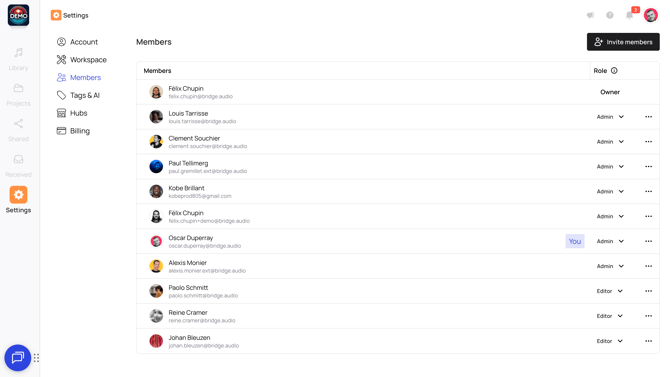
Members
The Members tab allows you to manage your Workspace members:
-
Invite new members
-
Assign or modify roles for existing members
-
Remove members from the Workspace (by clicking the “...” menu)
If you are an Administrator or Editor, you can also leave the Workspace by clicking the three dots next to your name.
Tags & AI
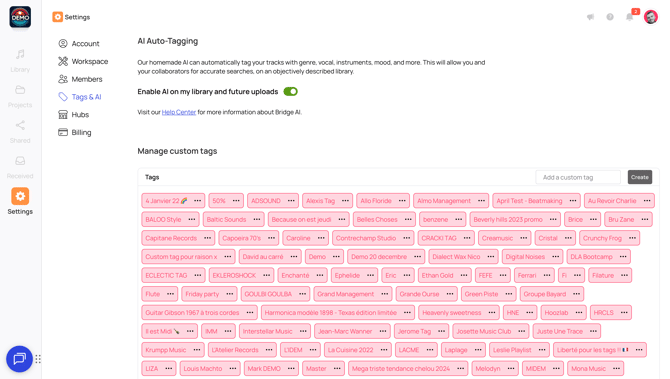
From the Tags & AI tab, you can:
-
Enable or disable automatic track description on upload
-
If this option is disabled, tracks will not be automatically tagged when uploaded to the Workspace
-
-
Manage custom tags:
-
Create new tags
-
Edit existing tags
-
Delete tags
-
Hubs
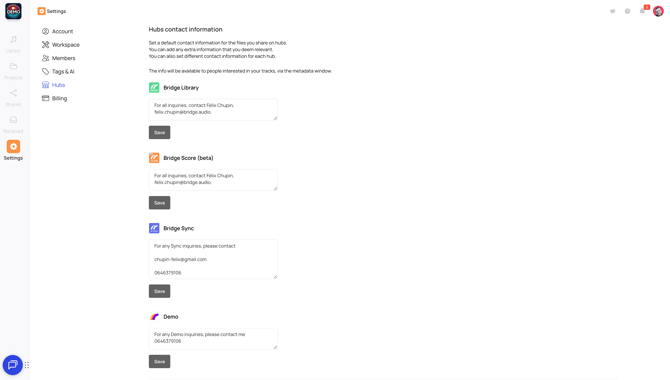
This tab is available to users with a Bridge subscription that includes Hub Tracks.
It allows you to:
-
Set a default comment shared across all Hubs, allowing music buyers to contact you if they want to sync one of your tracks
-
Add any additional information you think may be useful for music buyers
-
Define different contacts for each Hub, if needed
These details are visible to anyone interested in your tracks via the Metadata tab.
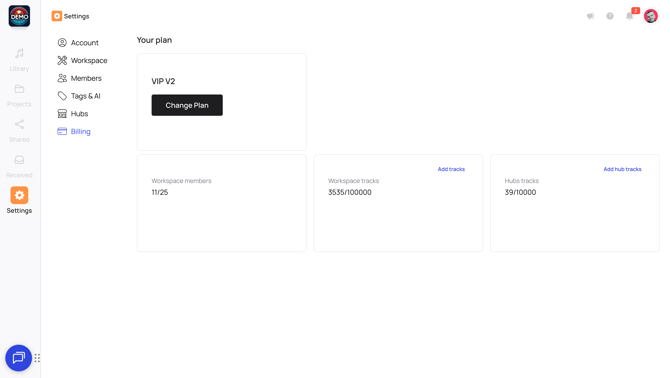
Billing
The Billing tab is available only to Owners and Administrators of the Workspace.
It allows you to:
-
View your current plan
-
Change your plan
-
See:
-
The number of Workspace Tracks
-
The number of Hub Tracks
-
From this tab, you can also:
-
Access your payment information
-
Update your billing address and company information
-
Change the billing contact
-
Update your payment method
-
View and download your billing history